What is Minivu?
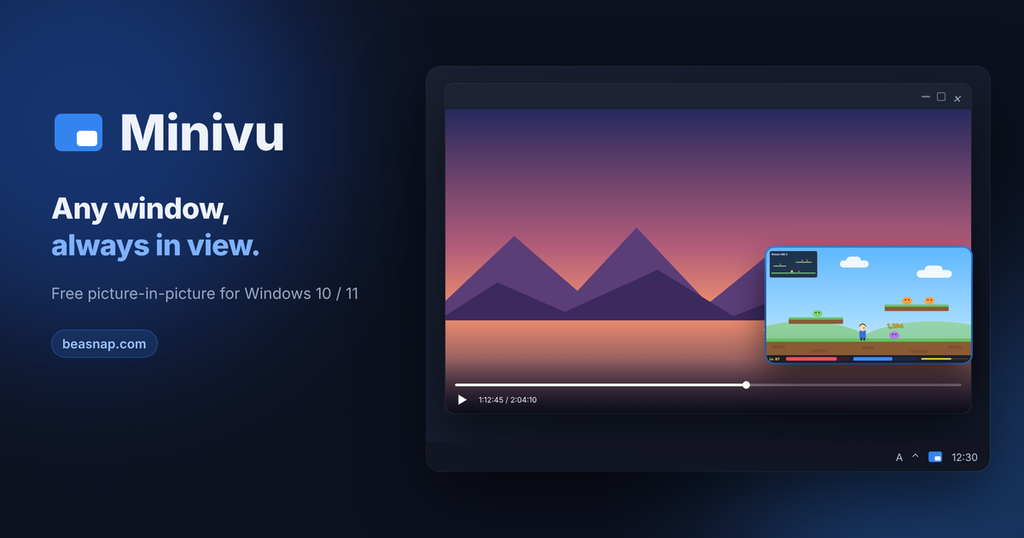
Minivu is a free picture-in-picture (PiP) utility for Windows 10 and 11. It shows any window as a small, always-on-top window, so you can keep an eye on one thing while you work on another. Keep your game in view while you watch a movie on the rest of the screen, or play your game full screen while a video, stream or chat runs in a corner.
Minivu mirrors the window through the Windows compositor (DWM), the same technology behind taskbar previews and Alt+Tab. The image is composed on the GPU, so there is almost no delay and almost no CPU load. Minivu does not inject code into other programs, does not read their memory and does not send any input to them. It only shows what Windows has already drawn on screen.
Key Features
Real-time PiP for Any Window
Pick any window (a game, a video player, a browser, a chat app) and Minivu shows it live in a small floating window. Drag to move, drag the edges to resize, and double-click to jump straight back to the original window.
Region Select
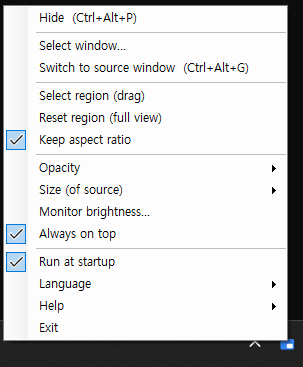
Only need part of a window, like a game’s minimap or a video’s subtitles? Drag a rectangle and Minivu shows just that part.
Keep Aspect Ratio
When enabled, the PiP window keeps the exact ratio of the source window (or the selected region) even while you resize it, so the picture never stretches.
Size by Percentage
Set the PiP to 25%, 33%, 50%, 75% or 100% of the source in one click. Whole-number scales keep text sharp.
Monitor Brightness Control
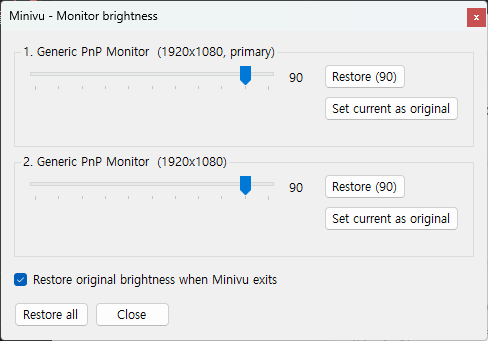
Adjust the brightness of each monitor from the tray (DDC/CI for external monitors, Windows brightness for laptop screens). Your original brightness is saved automatically and restored when Minivu exits, so you never have to remember what it was.
Tray & Hotkeys
Minivu lives in the system tray instead of the taskbar. The tray icon is blue when the PiP is visible and gray when it is hidden.
- Ctrl+Alt+P: Show / hide the PiP
- Ctrl+Alt+G: Switch to the original window
Run at Startup
Minivu can start with Windows and wait quietly in the tray. When the program you used last time starts (for example your game), the PiP appears automatically with your last position, size and region.
How to Use Minivu
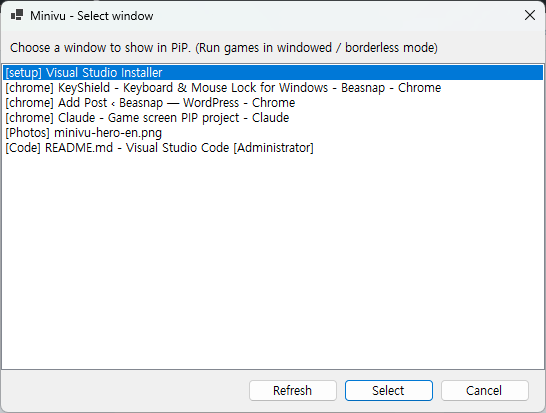
- Open the window you want to watch. For games, use Windowed or Borderless (Fullscreen Windowed) mode, because exclusive fullscreen cannot be mirrored.
- Start Minivu and select the window from the list.
- Place the PiP wherever you like. Right-click it for options such as region select, opacity, size and brightness.
- Keep the original window open somewhere (for example on a second monitor or behind another window). Do not minimize it, because Windows stops updating minimized windows.
Tip: If your game has an option like “Run in background” or “Keep running when unfocused”, turn it on so the game keeps rendering while you use another window.
FAQ
Can Minivu get me banned from a game?
Minivu does not touch the game process at all: no code injection, no memory reading, no automated input. It works the same way as Windows’ own window previews. However, every game has its own rules, so if you play a game with a very strict anti-cheat, please check that game’s terms first.
The PiP window is black. Why?
Some apps and games block screen capture, or a game is running in exclusive fullscreen. Switch the game to windowed or borderless mode and try again.
Why can’t I change my monitor’s brightness?
External monitors need DDC/CI. Turn on DDC/CI in your monitor’s on-screen menu (OSD).
System Requirements
- OS: Windows 10 / 11 (64-bit)
- .NET 8.0 Desktop Runtime required
- Languages: English, Korean
Download
Screenshots